- HOME
- EXPO 2025 Anytime, Anywhere: 360° View
EXPO 2025 Anytime, Anywhere:
360° View
The path we walked countless times that day.
The pavilions we glimpsed beyond the Grand Ring.
The world and the future we encountered for the first time.
EXPO 2025 Anytime, Anywhere: 360° View is a virtual space where you can relive the Expo Site in 360°.
Whether you want to experience it again at your own pace, or missed the chance to visit in person, revisit the Expo anytime, anywhere.
How to Use
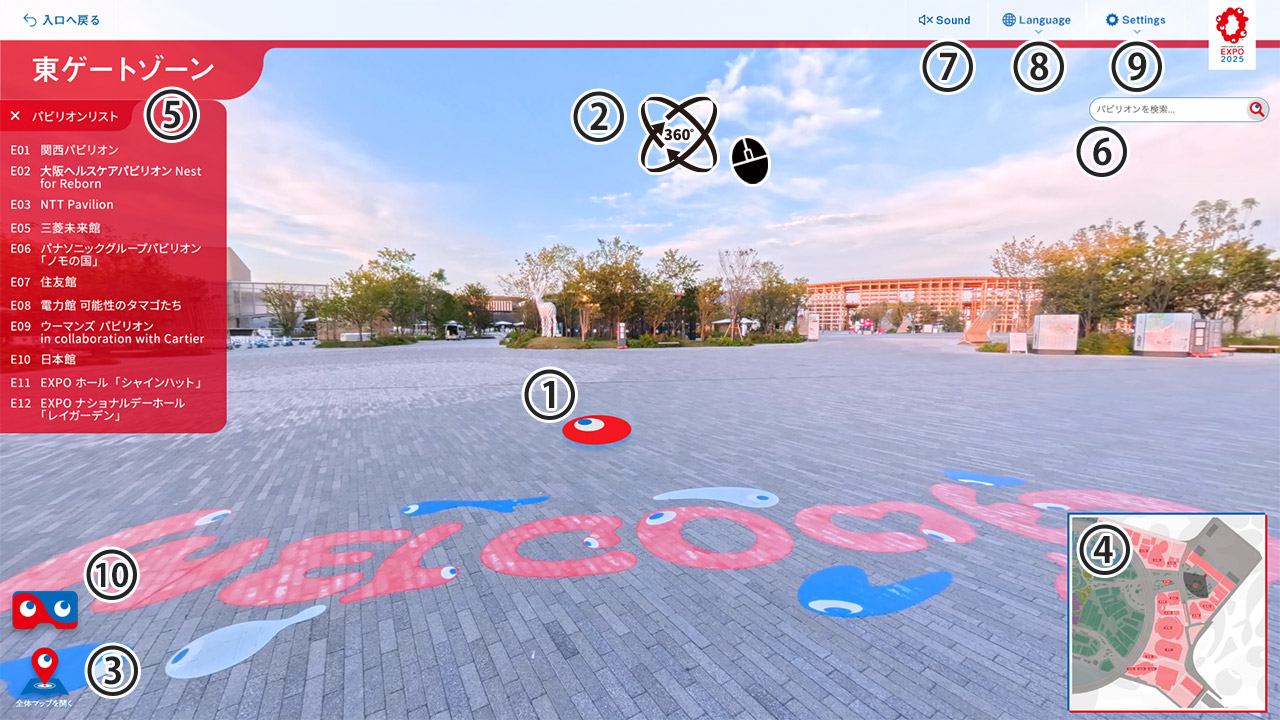
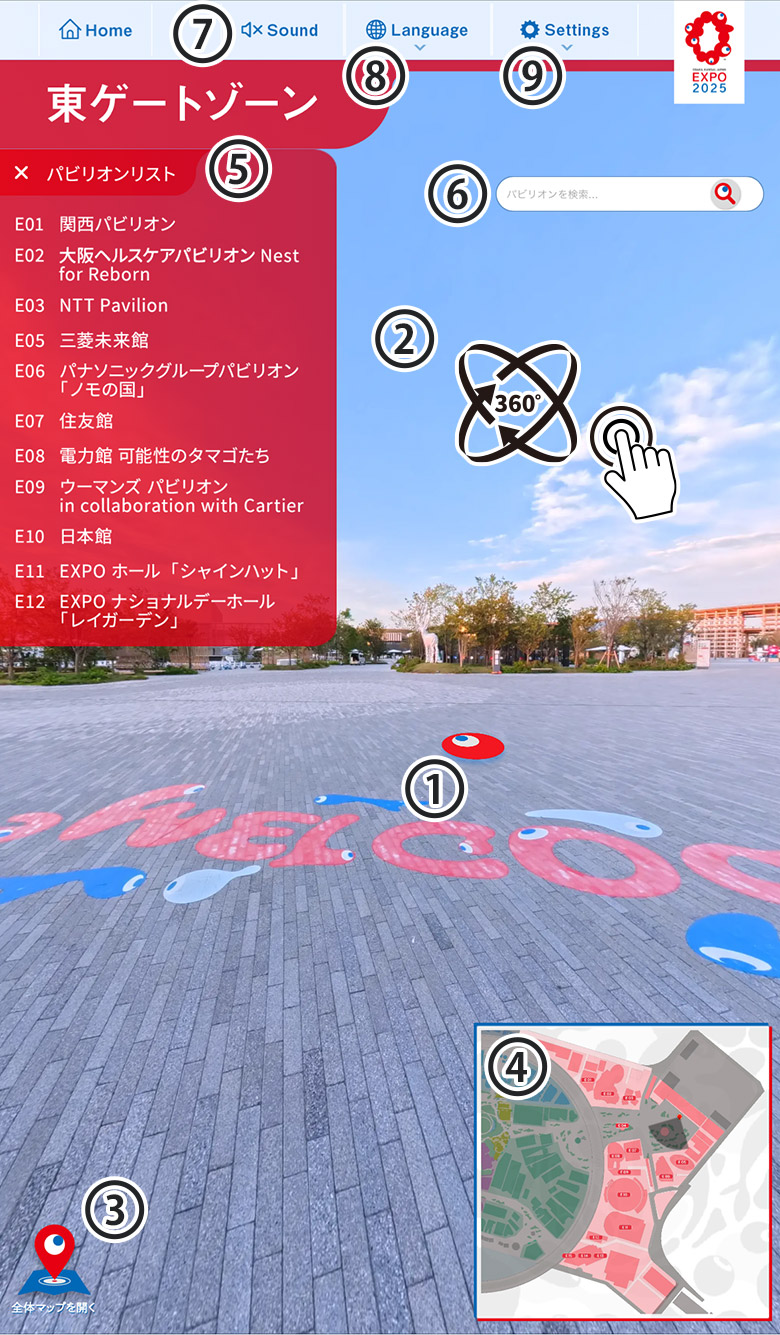
You can scroll horizontally to view the content.
Other Icons
You can scroll horizontally to view the content.
Terms of Use & Disclaimer
- Copyright:
- The copyrights for all images, videos, audio, text, and other materials contained in this Content belong to this Project and the respective pavilion exhibitors. Unauthorised reproduction, duplication, or modification is strictly prohibited.
- Disclaimer:
- We assume no responsibility for any damages (such as hardware malfunction or data loss) resulting from the use of this Content. Please note that the shapes and exhibit details of the pavilions may differ somewhat from the real-life pavilions.
- System Requirements:
- This Content contains many images, videos, etc. so it may be slow to load. We recommend using a stable internet connection and the latest browser version for the best experience.
About Audio
- ・Some parts of this Content include background music and narration from pavilions to enhance the immersive experience.
- ・Audio may start playing automatically when various contents begin.
- ・Please be mindful of the volume and use earphones/headphones when using this Content in a public place.
- ・Please check the volume settings on your device (PC, tablet, smartphone etc) before using this Content.
About VR Headsets
- ・You can enjoy this Content using any VR headset (head-mounted display/HMD) that connects to the internet. Please note that this Content requires a controller to operate, so it cannot be enjoyed on VR headsets that do not include controllers (such as cardboard headsets designed to hold a smartphone).
- ・When using your own VR headset, please follow the manufacturer’s recommended age guidelines.
- ・When using your own VR headset, please follow the manufacturer’s instructions.
- This Content does not include any stereoscopic 3D images, videos, etc.
- Disclaimer
- We assume no responsibility for any damages (such as hardware malfunction or data loss) or injury resulting from use of VR headsets (Head-Mounted Display/HMD).
- How to View the Content Using a VR Headset (Head-Mounted Display/HMD)
- Connect your VR headset (Head-Mounted Display/HMD) to the internet and access this website using your VR headset’s browser. Once you have accessed the website, configure the audio settings in your browser. (Turn audio on or off. Please note that you cannot adjust audio settings after switching to VR mode.) After configuring the audio settings, click the VR mode icon to switch to VR mode.
Enjoy on YouTube
Enjoy the world of the Expo through this 6-minute immersive video of Expo 2025 Osaka, Kansai, Japan filmed with a 360° camera.
* To view this video on a VR headset, please download the “YouTube VR” app and open the video in the app using the link below.
https://youtu.be/2Qxk43dCvsA
Expo 2025 Osaka, Kansai, Japan Soundscape Design
Composers / Sound Artists:
evala, KEIZOmachine!, Midori Hirano, Masayoshi Fujita, Hiroshi Watanabe a.k.a. KAITO, Kuniyuki Takahashi, Koshi Miura
FAQ
Frequently Asked Questions
How can I watch the content?
You can watch it using a smartphone, tablet, computer web browser, or the browser on a VR headset (HMD) with an internet connection.
Do I need to download an app to watch?
No dedicated app is required for standard viewing. You can watch directly through your browser. However, to watch the mini-experience programme (approx. 5 minutes), please use the YouTube app. If using VR goggles, please use the YouTube VR app.
How can I navigate to the pavilions I want to see?
You can navigate to pavilions by using the search bar on the screen, the map, or the pavilions list.
The video is blurry/the image quality is poor.
Image quality may be automatically adjusted based on your network connection. We recommend viewing with a stable Wi-Fi connection. If you are using VR goggles, please check if the lenses are foggy or out of focus.
The video is choppy/loading is slow.
As this content is high-definition 360-degree video, it may be slow to load depending on your network connection and device specifications. If the issue persists after waiting a while, please try reloading the page or restarting your browser.
There is no sound.
First, please check that the audio is not turned off in the settings menu. Also, please check the volume settings on your device or VR headset, as well as your browser’s mute settings.
How much data will this use?
As this content is high-definition 360-degree video, it consumes a significant amount of data. We recommend using Wi-Fi instead of mobile data.
Is it okay to use it for long periods of time?
Prolonged viewing may strain your eyes and body. Please take appropriate breaks while using this content.
Viewing on a Computer, Smartphone, or Tablet
What devices can I use to view the content?
You can view the content using a web browser on a smartphone, tablet, or computer. No special equipment is required.
Which browsers are supported?
We recommend using the latest versions of browsers such as Google Chrome, Safari, and Microsoft Edge.
How do I change the viewing perspective (direction)?
On smartphone or tablet, swipe the screen with your finger. On computers, drag the screen with your mouse.
How can I zoom in or out?
On smartphone or tablet, you can zoom in or out by pinching the screen. On computer, you can use the mouse.
How do I turn the audio on/off or adjust the volume?
You can toggle the audio on/off using the “Sound” option in the menu. Please adjust the volume using your device’s volume settings.
Can I view this in full-screen mode?
Yes. Please use the full-screen button on the screen or your browser’s full-screen feature.
The video isn’t displaying.
Please update your browser to the latest version and try reloading the page. Also, please try accessing the page again in a location with a good internet connection.
The site is not responding.
Reloading the page may resolve the issue. You may also want to try using a different browser.
Can I watch the content on an older smartphone?
While it may be possible to watch videos, depending on your device’s performance, the site may run slowly or not display properly.
Viewing with a VR Headset
Which VR headsets (HMDs) are compatible?
You can view the content using VR headsets (HMDs) that can connect to the internet independently, such as Meta, PICO, DPVR, and HTC. We recommend using the standard browser built into your VR headset (e.g., Meta Quest Browser).
How do I view the content in VR mode?
Access the site using your VR headset’s standard browser, then select the “VR icon (headset icon)” on the screen with your controller. This will switch to 360-degree VR mode.
How do I change my viewpoint (direction of view)?
While wearing your VR headset, you can look around freely in all directions by moving your head up, down, left, and right. Additionally, you can move to a specific viewpoint by selecting the movement icons using your controller.
How do I move around the space or select menu items?
Align the pointer (laser) from your VR controller with the movement icons or menu items to select them.
How do I return to the original browser screen (2D screen) from VR mode?
Select the “Back” button.
How do I adjust the volume?
Use the volume buttons on your VR headset.
Can I view the content while wearing glasses?
Yes, you can, providing the glasses fit inside your VR headset.
What should I do if the view is misaligned?
Please use the centering function (the function that returns the view to the front) on your VR headset. If that does not resolve the issue, please try restarting the device.
Pressing the “VR button” does not switch to VR mode.
Your browser may not support WebXR. Please use the standard browser built into your VR headset. Also, please check to see if your browser is up to date.
My VR headset won’t turn on.
The battery may be low. Please check the battery level. If the issue persists, the device may be malfunctioning. Please refer to the user manual and contact the manufacturer.
The VR headset controller isn’t responding.
The battery may be low. Please check the battery level. If the issue persists, please refer to the user manual and contact the manufacturer.
What should I do if I feel sick (experience VR motion sickness) while watching?
Immediately remove the VR headset, rest your eyes, and take a sufficient break. Until you get used to it, we recommend viewing while seated and looking around slowly without moving your head suddenly.
Is it better to view while standing? Can I still enjoy it while seated?
You can view the content in either position, but we recommend viewing while seated. If you choose to view while standing, please use the device in a safe location free of obstacles to prevent falls.